Creating Spending Groups
In order to create a spending group the user will need to navigate to Purchasing and select the  module.
A spending group contains one or more employees and the rules that apply to their spending against capital requests and purchase orders.
module.
A spending group contains one or more employees and the rules that apply to their spending against capital requests and purchase orders.
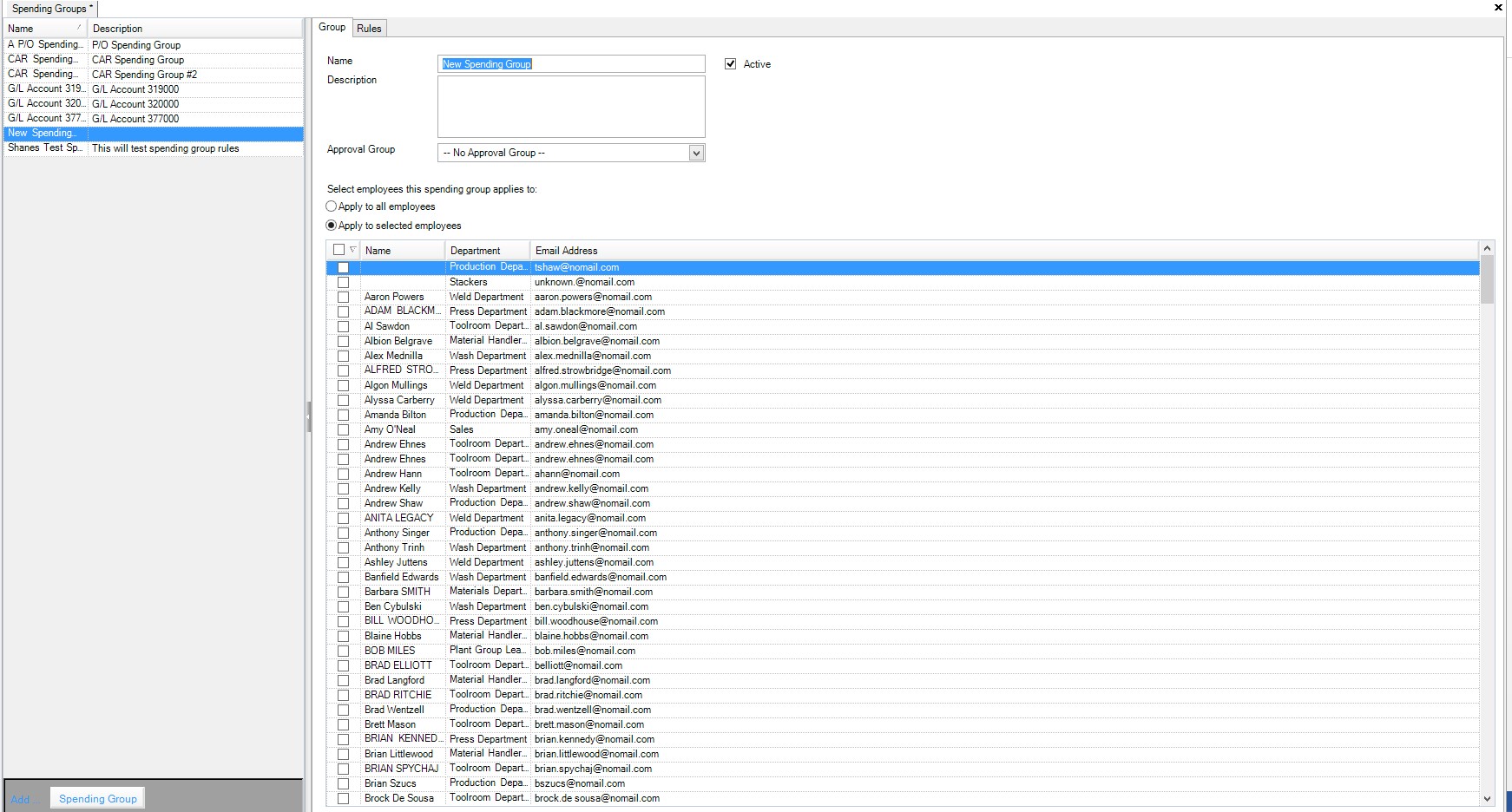
The user will be able to edit existing spending groups, or create a new one by selecting  .
.
The user will now be able to create a name for the spending group, description, the group that will approve any requests, and the employees that belong to this spending group. In order for this group to be active, the user will have to ensure that the Active check box is filled as shown below.
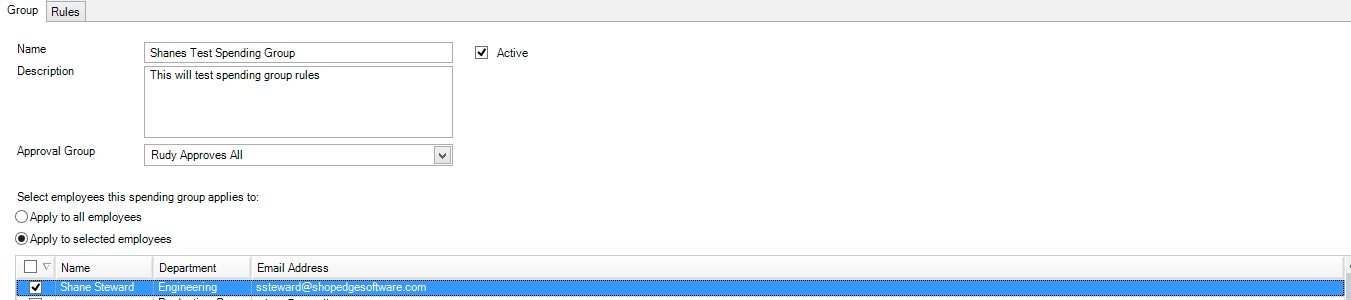
Note
A user cannot belong to both the spending group and spending approval group
Once this group has a name, description, approval, and employees that the group applies to, select the |images/capital-requests-and-approvals/rulestab.jpg| tab.
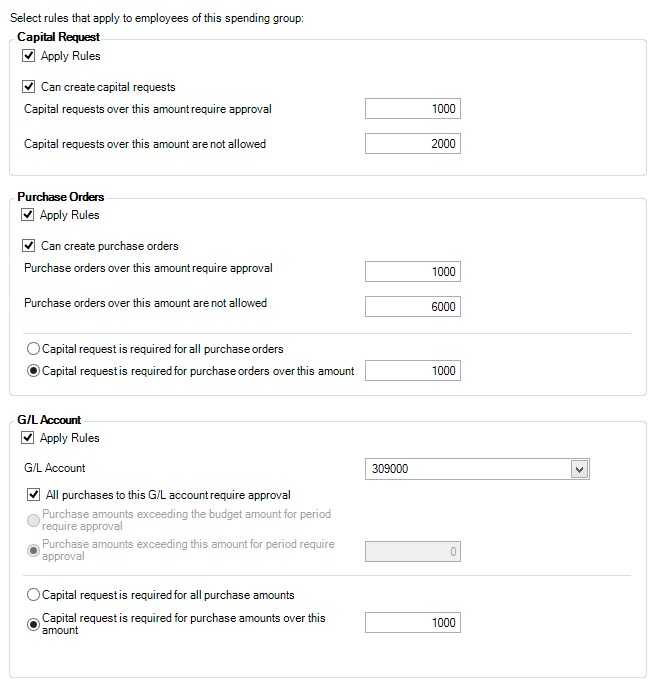
From here the user is able to select specific rules that will apply to employees when creating new Capital Requests, Purchase Orders or G/L Accounts. The user has the ability to have all rules apply or not (IE. Capital Requests can be set with rules, while Purchase Orders could be set to not have any rules)
Capital Request:
- Apply Rules – When selected, all rules within this grouping will be applied to users in this spending group
- Can create capital requests - When selected, users will be able to create capital requests.
- Capital Requests over this amount require an approval – Any capital requests that are created and have an amount over what the user has set, will require an approval. A capital request for an amount under this amount does not require any approval.
- Capital Requests over this amount are not allowed – Any capital requests that are created and have an amount over what the user has set, are immediately refused.
Purchase Orders:
- Apply Rules – When selected, all rules within this grouping will be applied to users in this spending group
- Can create purchase orders – When selected, users will be able to create purchase orders.
- Purchase Orders over this amount require an approval – Any purchase orders that are created and have an amount over what the user has set, will require an approval. Purchase Orders created with an amount less this this amount do not require approval.
- Purchase Orders over this amount are not allowed – Any purchase orders that are created and have an amount over what the user has set, are immediately refused.
- Capital Request is required for all purchase orders – All users in this spending group will require a capital request on all purchase orders
- Capital Request is required for all purchase orders over this amount – A capital request is required for any purchase order over this set amount.
G/L Account:
- Apply Rules. When selected, all rules within this grouping will be applied to users in this spending group.
- G/L Account. Select the G/L Account that these rules will be applied to.
- All Purchases to this G/L Account require approval.
- Purchase amounts exceeding the budget amount for period require approval. If the purchase order amount plus the total purchase orders for the period exceed the budget amount, amounts exceeding the budget amount(set in G/L Account) will require approval, if set. Note this limit applies to the purchase order line items linked to the G/L Account.
- Purchase amounts exceeding this amount for period require approval. Any purchase amount exceeding this set amount will require approval if set.
- Capital Request is required for all purchase amounts. All users in this spending group will require a capital request on all purchase amounts.
- Capital Request is required for all purchase amount over this amount. A capital request is required for any purchase amount over this set amount.
After the user has set these rules, and selected the employees that will be bound by them select save at the top of the application.