Creating a New Spending Approval Group
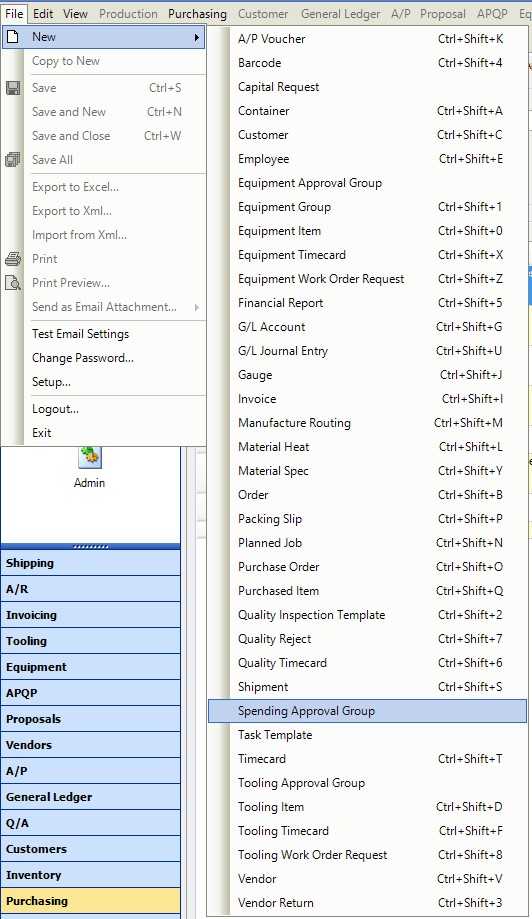
In order to create a new Spending Approval Group, the user will need to navigate to the top of the page and select File -> New -> Spending Approval Group
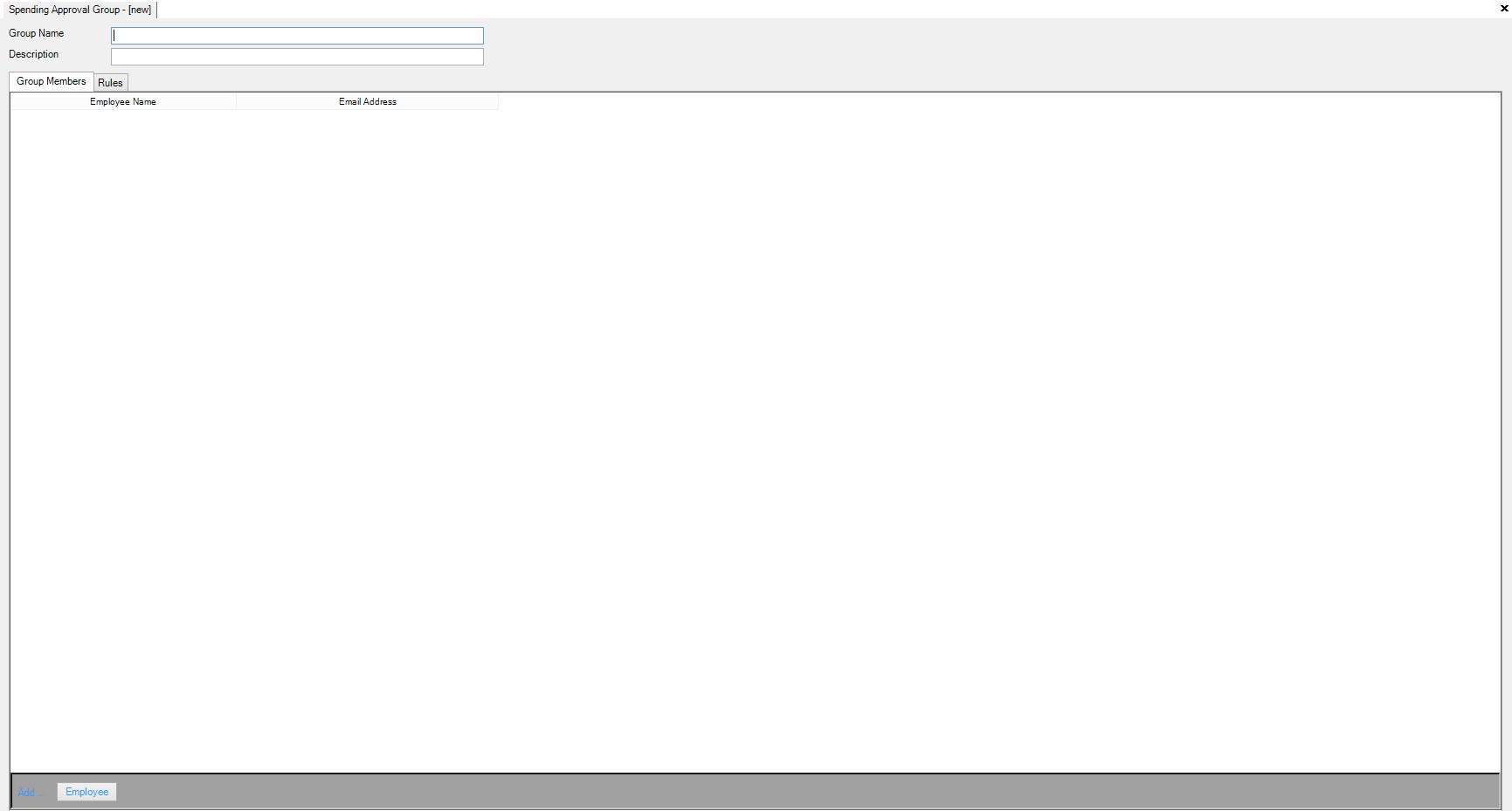
Once the user creates a group name and description, they can begin adding employees to this group by clicking on the  button. Employees that are part of the spending approval group can approve or deny spending requests that are generated against the spending groups(s) for which the approval group is responsible for.
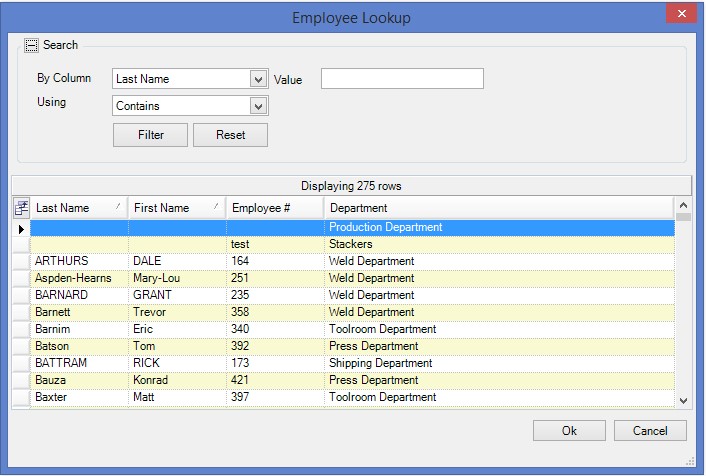
After selecting the employees that will be included in this group, click Ok.
Once the group has some members, click on the  tab.
tab.
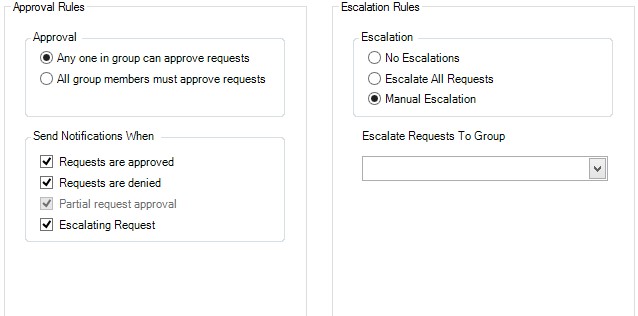
The user will now be able to select the following options from Approval:
- Anyone in the group can approve requests - If the group has multiple members, only one is required to approve requests
- All group members must approve requests - If the group has multiple members, all members must approve the order to continue
Send notifications when:
- Requests are approved
- Requests are denied
- Partial request approval
- Escalating requests
Escalation:
- No escalations - No request will be escalated beyond this spending group
- Escalate all requests - Every request will be escalated to another group for approval
- Manual escalation - The spending group has the option of escalating it or approving it
- Escalate requests to group - This is the group that will receive the escalation request, and will get the decision of whether to approve or deny
After the user has selected the rules for the spending group, they will be required to save in order to retain their changes.