Item Types and Attributes
Item Types are used in the system to define the types of material purchased. To locate Item Types, navigate to the
 tab, and click on the
  icon. This will
open the ‘Item Types’ screen.
icon. This will
open the ‘Item Types’ screen.
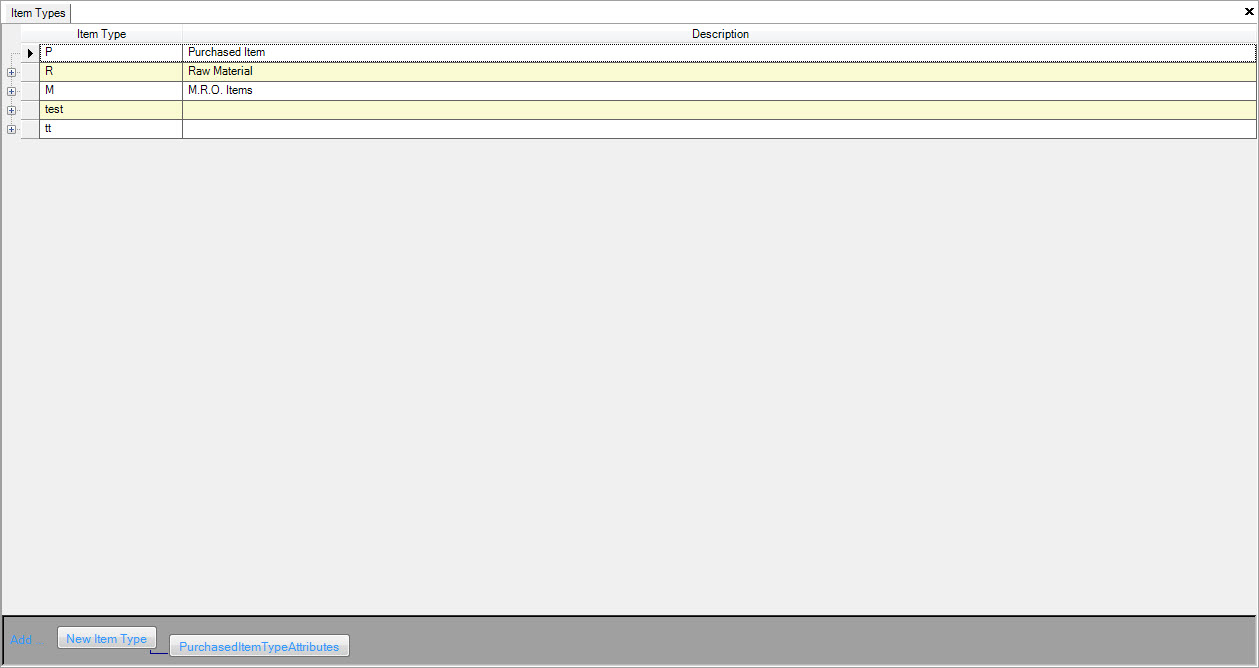
To add a new item type, click on the Add...  button at the bottom of the screen. Enter in the Item Type
and Description and save the screen. To delete an item type, highlight the row and use your delete key.
button at the bottom of the screen. Enter in the Item Type
and Description and save the screen. To delete an item type, highlight the row and use your delete key.
Attributes
Some item types might also have a set of attributes that need to be defined and attached to each purchased item type. For example, a coil defined as R or Raw Material,
may have width and gauge attributes that you wish to track upon receipt. Too add an attribute to an item type, select the item type and click on the  button at the bottom of the screen. Enter in the attribute, and select in the system if you wish to verify the attribute upon receipt. By selecting this option, attributes
that are recorded outside of the Min and Max measurements will automatically be placed on hold.
button at the bottom of the screen. Enter in the attribute, and select in the system if you wish to verify the attribute upon receipt. By selecting this option, attributes
that are recorded outside of the Min and Max measurements will automatically be placed on hold.
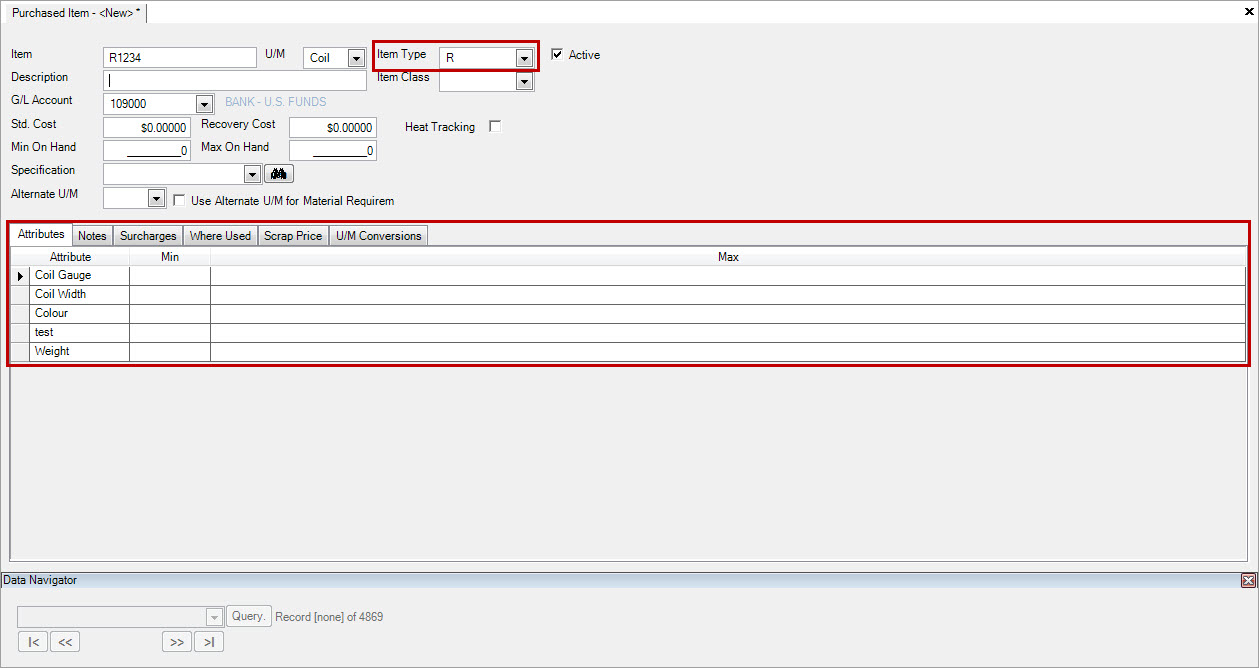
When you enter in a new purchased item, and select the purchase item type, the attributes will be populated at the bottom of the screen under the  tab.
You can then enter in the Min and Max of each attribute that are considered upon receiving.
tab.
You can then enter in the Min and Max of each attribute that are considered upon receiving.