Purchase Orders
There are a few types of purchase orders in the system, that deal with different types of purchases. See below for descriptions of each.
Normal and Processor
Normal: These orders buy material directly or indirectly consumed in the manufacturing process and/or for maintaining plant equipment. Normal purchase orders also cover non-stock items, and M.R.O. items as well.
Processor: These orders are strictly for purchasing Outside Processes where manufactured items are sent to another facility for further processing.
Blanket and Non-Blanket
Blanket Order: Always active/open even if all items on the P/O have been received and there no items with something due.
Non-Blanket Order: Will cease to be active/open after all items have received.
Both order types (Normal and Processor) may be a Blanket order by checking off the Blanket order check box in the P/O header area. This is only available when the P/O is created or if the P/O does not have any open items and there are no receipts against the P/O.
Note
It is important to remember that a Normal/Process order describes what is being purchased, whether an object or a function/operation, whereas a Blanket / Non-Blanket order dictates whether the order closes (becomes In-Active) after all items have been received.
Note
The Process must be a Blanket in order for these items to be in the lookup window for selection and assigned to a Packing Slip
Creating a Purchase Order
There are three different ways to add a new purchase order to the system. The first way is to press the Ctrl + Shift + O keys. The second way is to navigate to File > New > Purchase Order
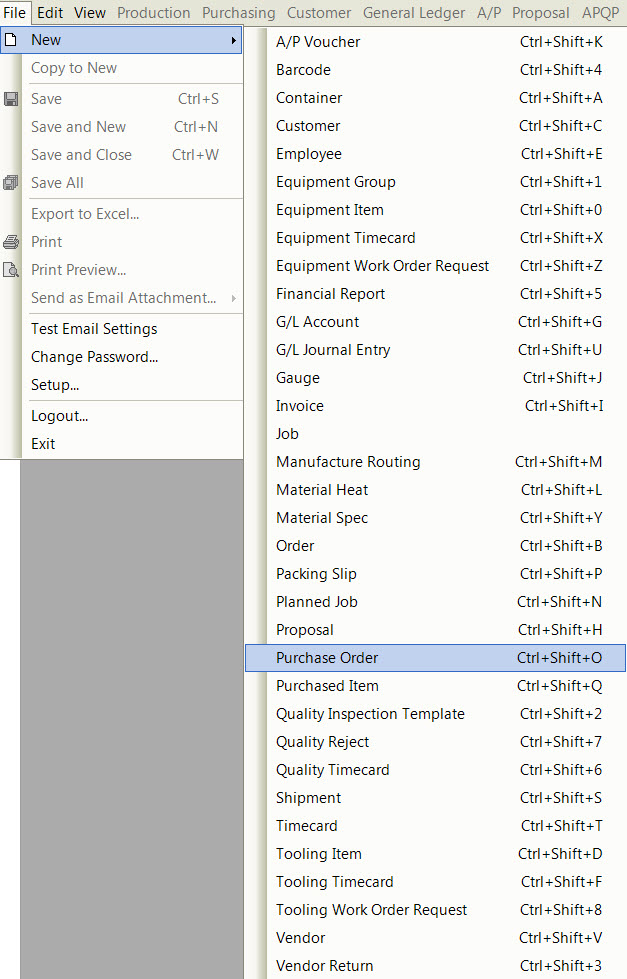
The last way is the click on the  button, and then on the Purchase Order option.

All of these three options will open a New Purchase Order Screen.
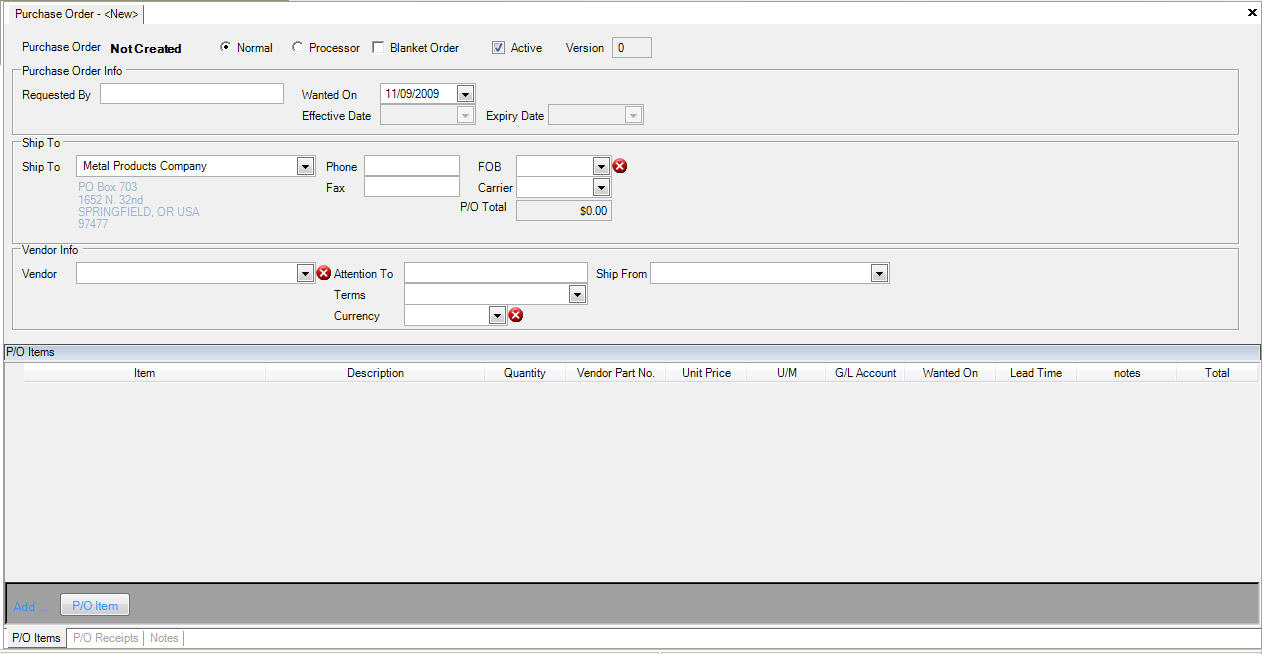
There are various mandatory fields that must be completed before the new purchase order can be saved in the system. The user will be prompted for this information when they perform a save. Once the proper fields have been entered the user can find this purchase order among other purchase orders in the Purchase Order Lookup screen.
Maintaining a Purchase Order
If you wish to make changes to an existing purchase order, the first thing you need to do is find the purchase order that you wish to make changes to.
Opening a Purchase Order
If you wish to add or delete an item from a purchase order, or make any other modifications, simply use the Purchase Order Lookup to find the purchase order you are looking for.
You can access the lookup screen by navigating to the  tab,
and clicking on the
tab,
and clicking on the  icon. This will bring up the Purchase Orders Lookup Screen.
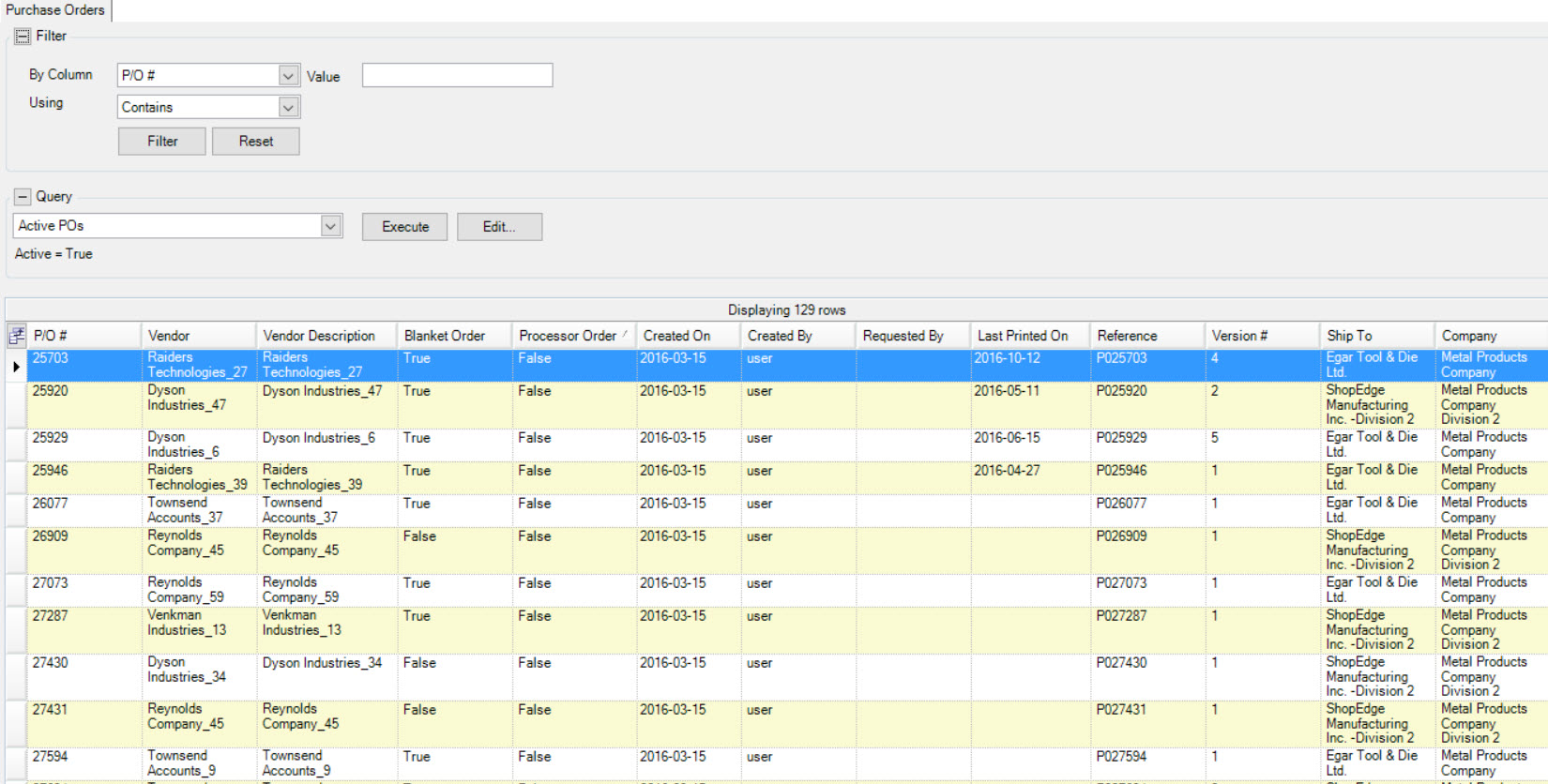
To open a particular purchase order, search using the parameters at the top of the screen, or sort by clicking on the column headers. Once you find the purchase order you are looking for, double click on the highlighted row or highlight the row and press the ‘Enter’ key.
Adding an Item to a Purchase Order
To add an item to a purchase order, click on the  button at the bottom of the screen.
This will add a new empty row below any existing items.
button at the bottom of the screen.
This will add a new empty row below any existing items.
For new purchase order items the wanted on date will default to the purchase order wanted on date. If the current date is later than the purchase order wanted on date, then the purchase order item wanted on date will default to the current date.
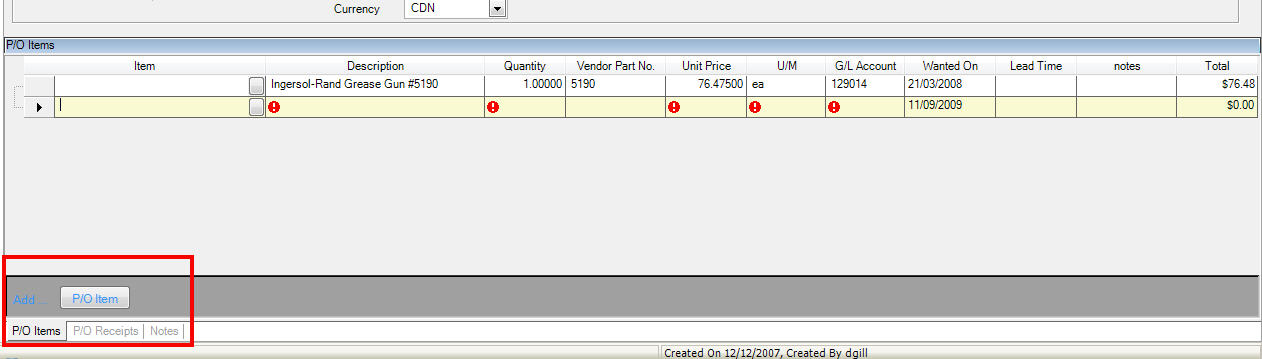
You can enter in the item information manually, or click on the small box to the right of the ‘Item’ row to bring up the ‘Purchased Item Lookup’ screen.
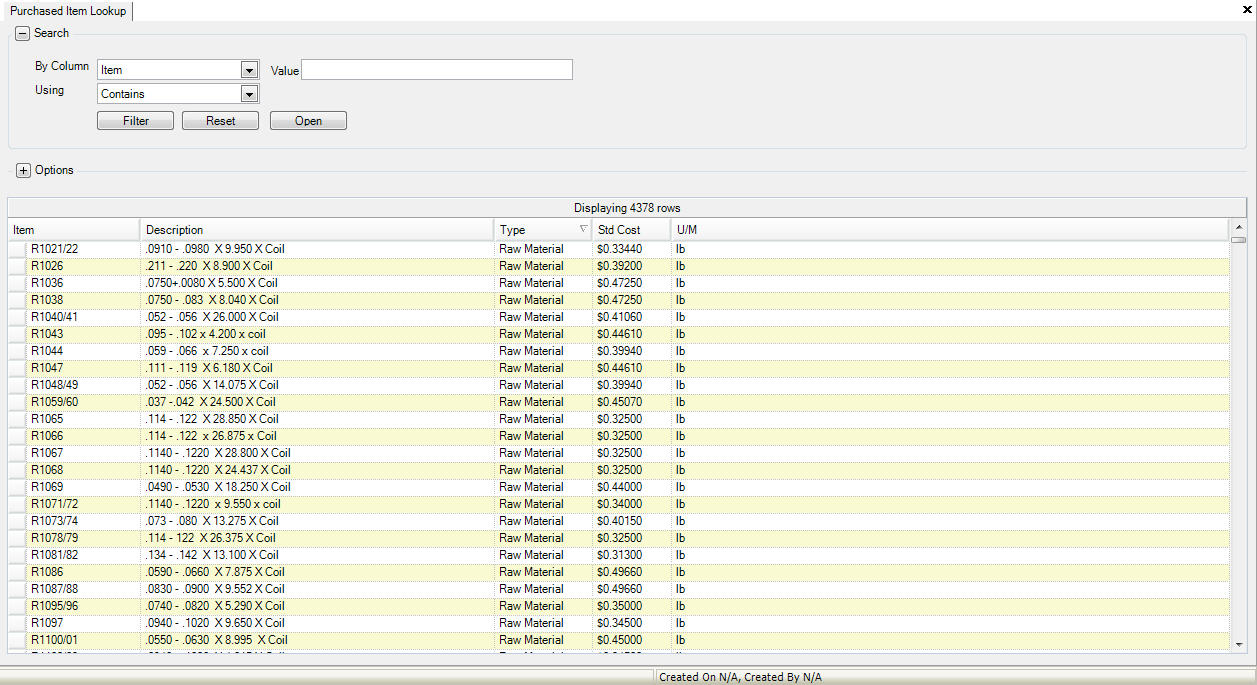
Highlight the item that you wish to add to the purchase order and click on the  button or press the Enter key.
Note
You have the ability to add multiple purchased items at one time. Simply hold down the Ctrl key, highlight the items you wish to add by clicking on them, and then click on the
button or press the Enter key.
Deleting an Item from a Purchase Order
To delete a line item from a purchase order, select the item that you wish to delete so the row is highlighted, and press the Delete key. The system will prompt you with the following pop-up:
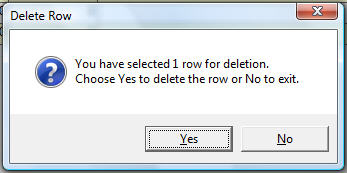
Click on the  button.
Note
You have the ability to delete multiple rows at one time by holding down the Shift key, highlighting all of the rows you wish to delete, and then clicking on the button on the pop-up window.
Tracking Changed Purchase Orders
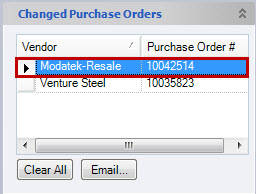
Tracking ‘Changed Purchase Orders’ on the material requirements screen allows users to track changed purchase orders and record each purchase order on the Changed Purchase Orders pane. ‘Changed Purchase Orders’ is located under the ‘Options’ menu at the right side of the screen.
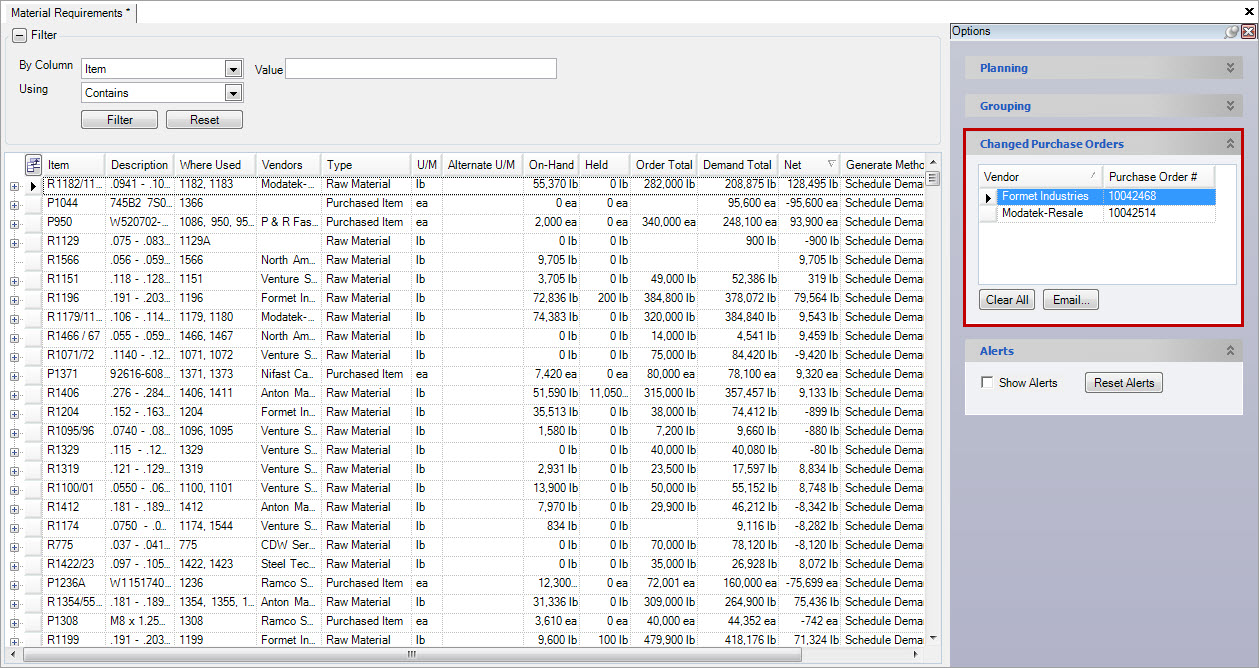
The list can be reset at any time by clicking on the  button. Purchase orders and vendor
delivery schedules can be emailed directly by clicking on the
button. Purchase orders and vendor
delivery schedules can be emailed directly by clicking on the  button.
Once you click the button, the window will display:
button.
Once you click the button, the window will display:
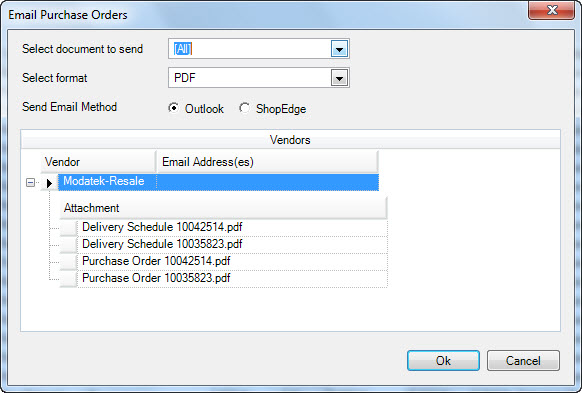
You can select the type of document to send, and the format. You can preview the contents of the attachments by double clicking on the attachment row. You can modify the email addresses. Once you click the |images/material-planning/okbutton.jpg| button, a new email will appear for each vendor.
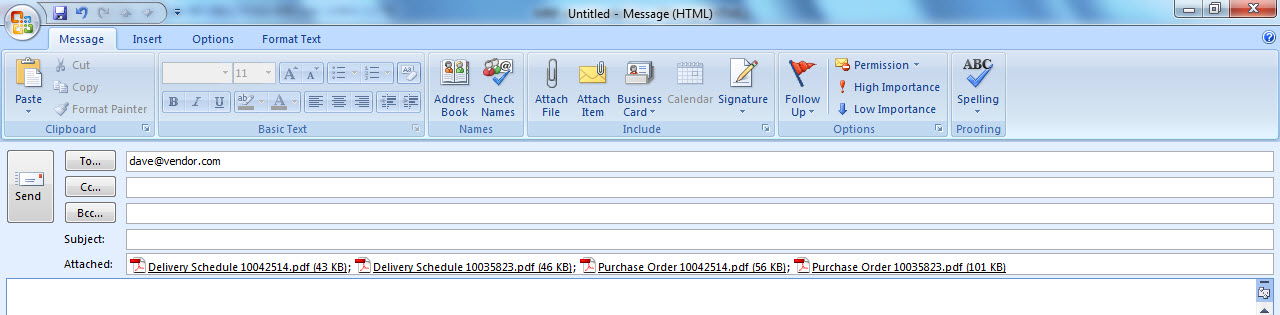
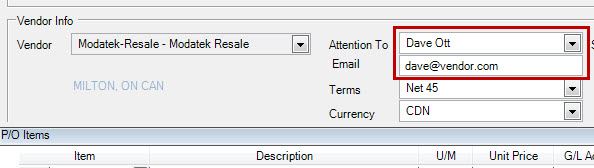
The email addresses will be populated directly from the email address field on the purchase order.
Opening a Purchase Order
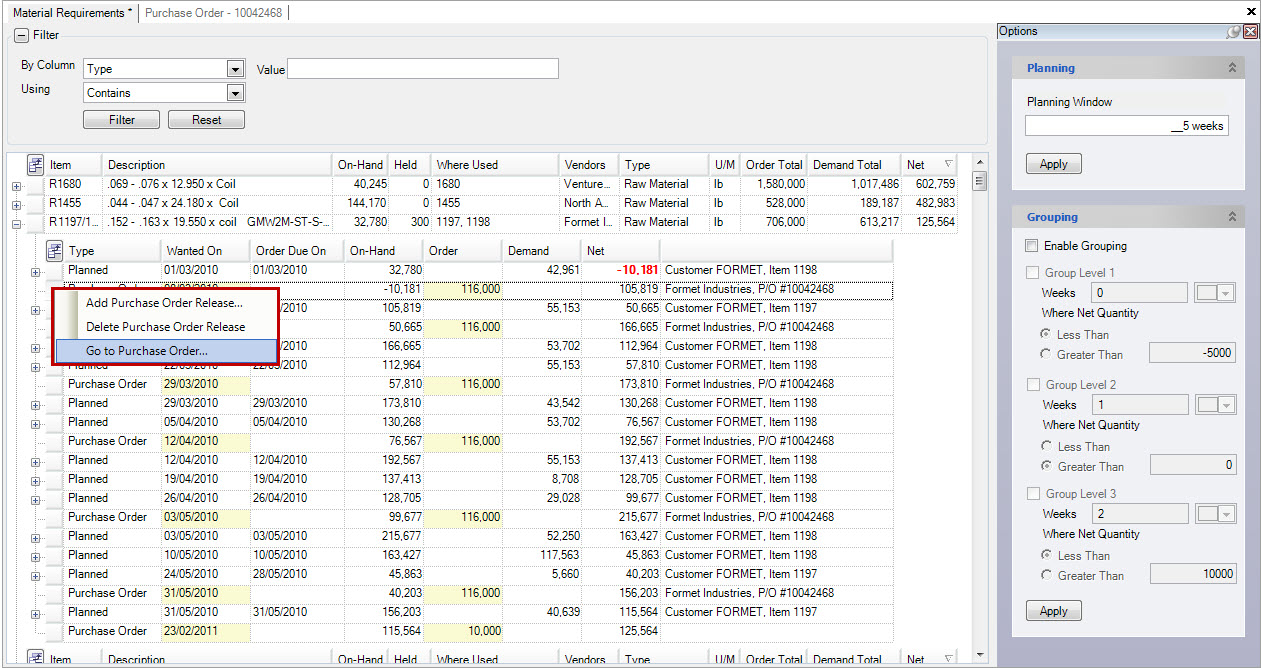
To open a purchase order from the Material Requirements screen, expand an item by clicking on the + option. Then right-click on one of the ‘Purchase Order’ (release) rows to view the quick menu option. Select ‘Go To Purchase Order’ from the options provided.
You can also open a purchase order by double clicking on one of the rows of the ‘Changed Purchase Orders’ pane.