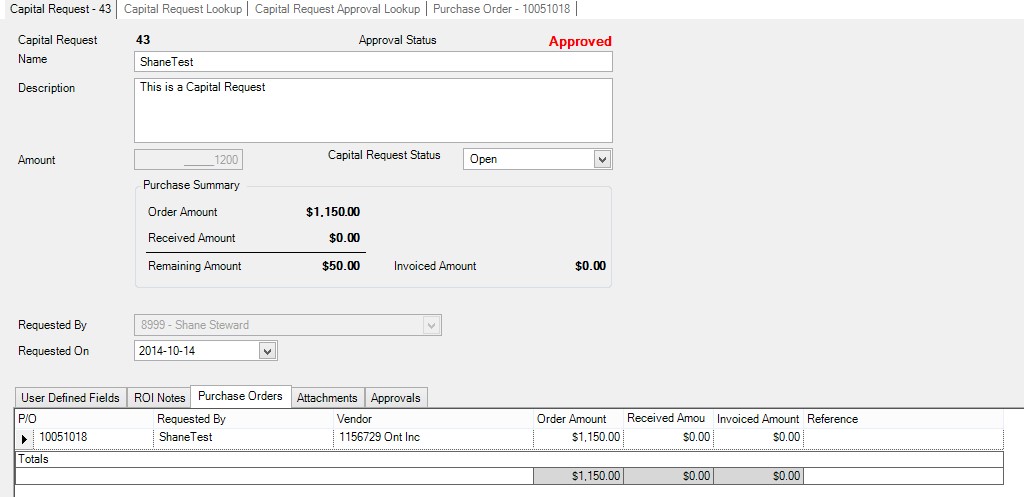
Creating a New Capital Request
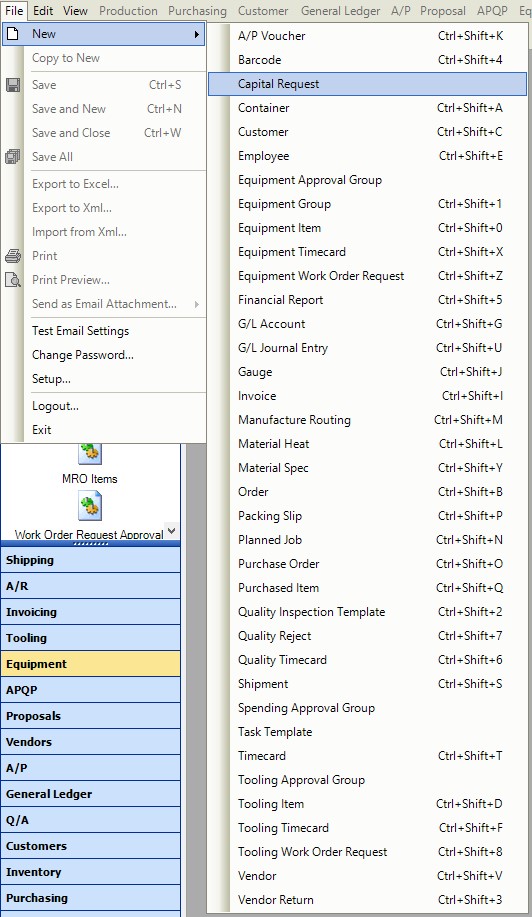
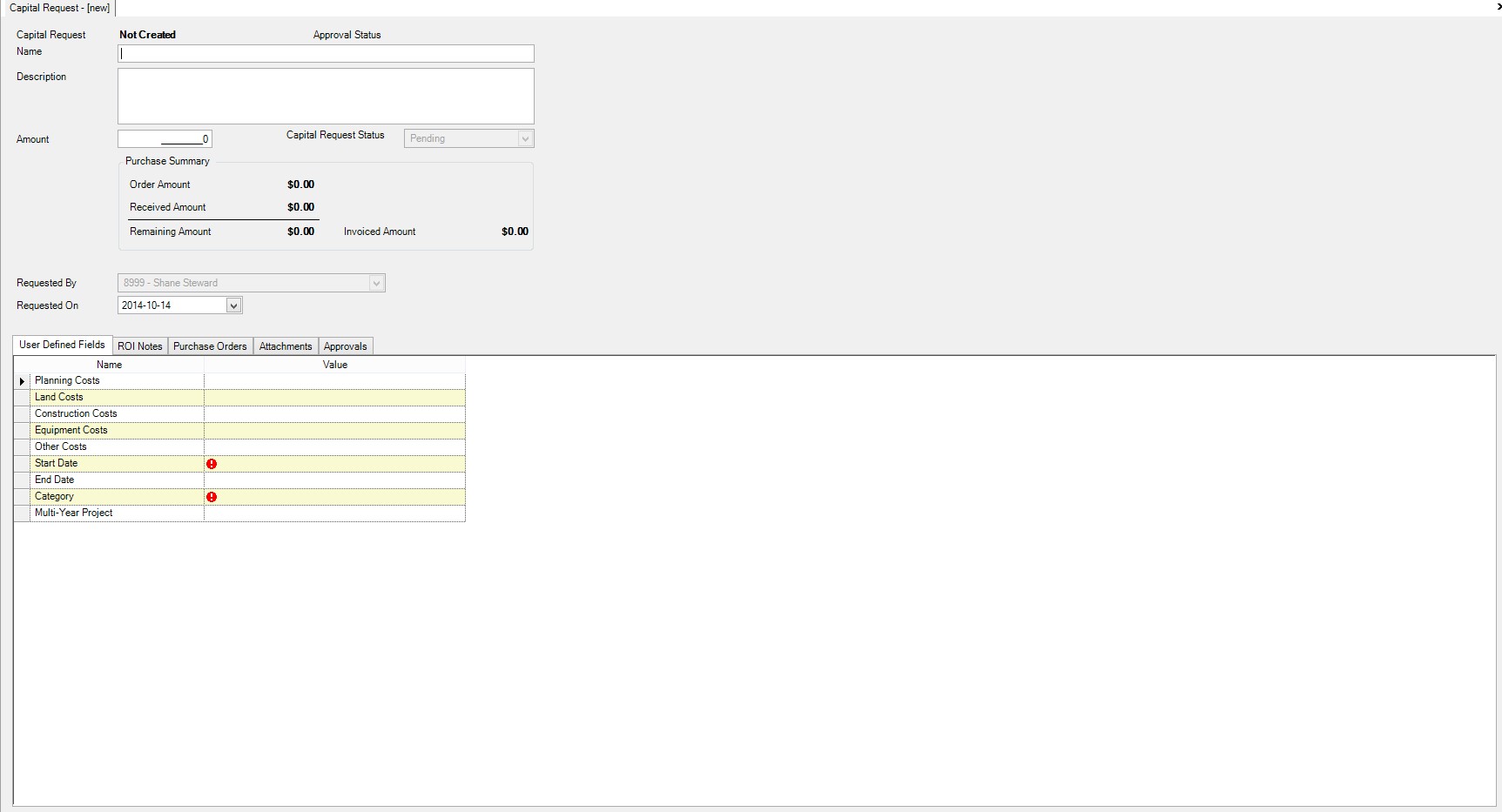
To create a new Capital Request, navigate to File > New > Capital Request. A new Capital Request screen will be displayed.
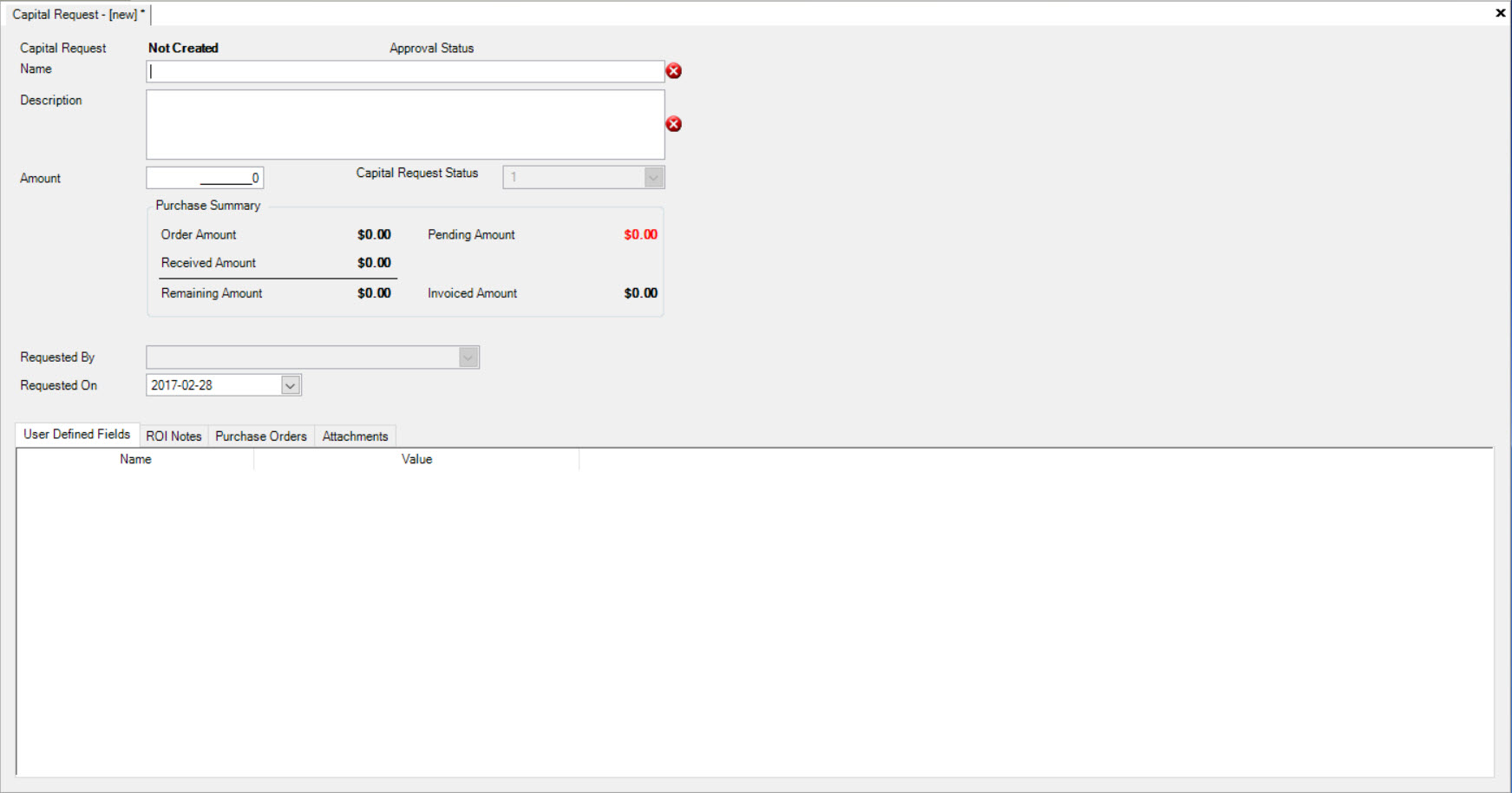
User must fill in a Capital Request Name, Description, Amount and select a Requested On date.

Once a user has filled in the necessary information, they will have the option to add ROI Notes.

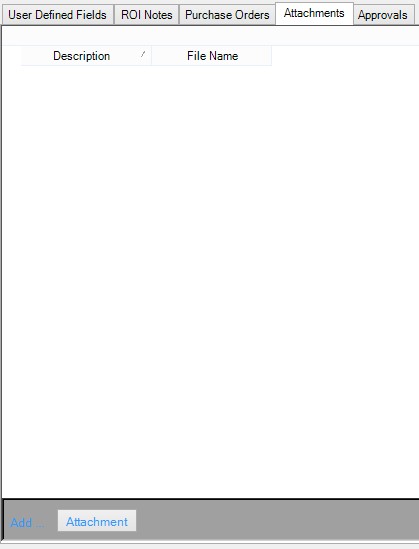
If the user’s new Capital Request was successful, their status will be set to ‘Approval Not Required’. However, if the user receives:
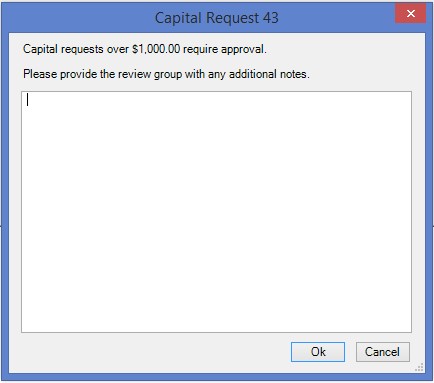
Then the Capital Request Approval Status will be set to ‘Pending’.
The user who created the new Capital Request that is now Pending, will need to have someone else with approval permissions to approve it. Once someone else has approved the new Capital Request, the approval status will change to Approved.

The user can now find their Capital Request under Purchasing > Capital Requests.
Linking a Capital Request to a Purchase Order
To create a new Purchase Order that requires a Capital Request navigate to the top of the application and select File -> New -> Purchase Order.

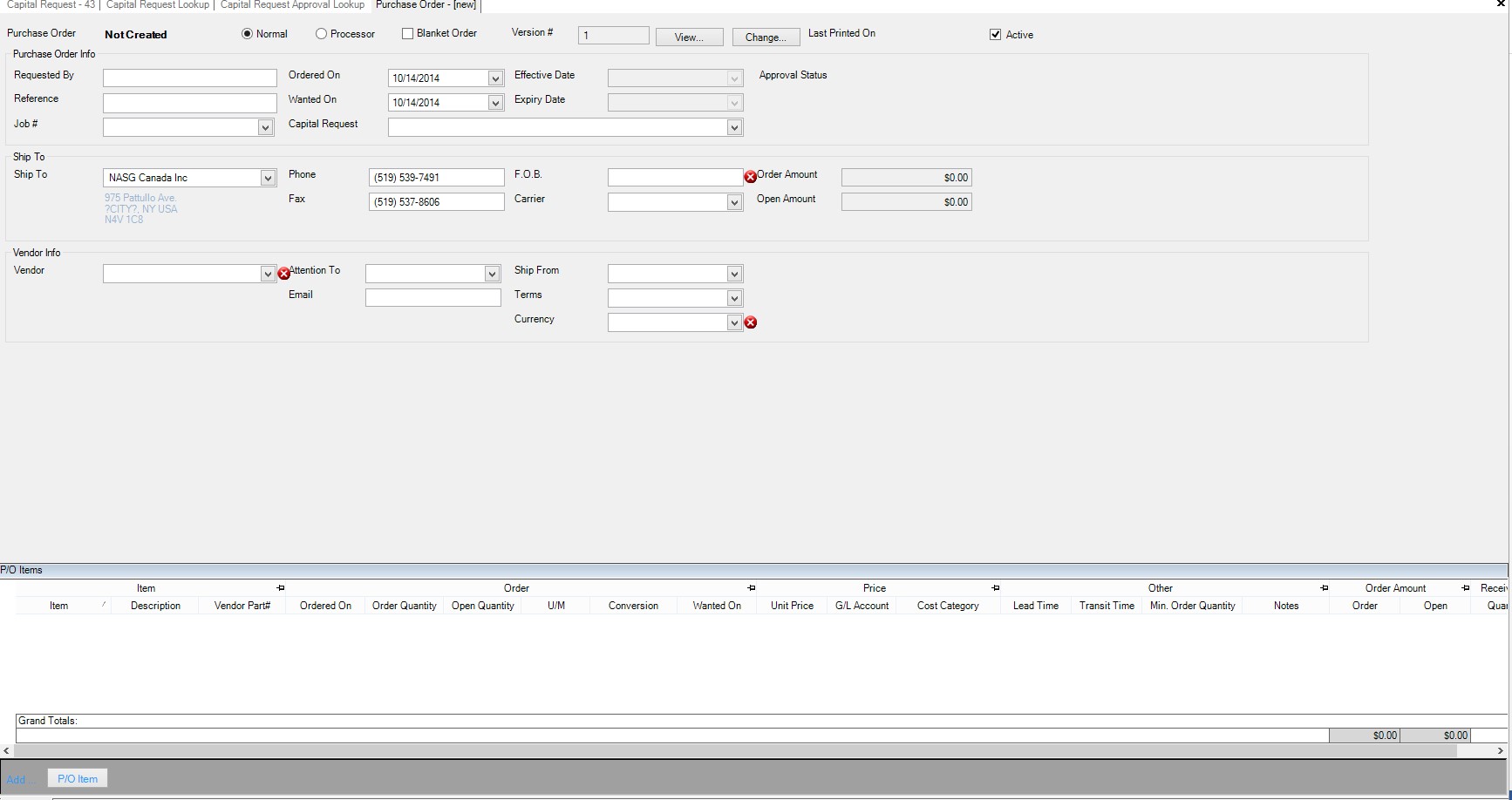
While creating a Purchase Order is largely unchanged, users now have the ability to link a Purchase Order to a specific Capital Request. Select the Capital Request drop-down and select the Capital Request you wish this Purchase Order to be linked to.
In the event that the user is not:
- In a specific spending group
- Spending group rules are not activated
- Purchase Order does not go over amount set by rules to require approval
When the user goes to save this Purchase Order the approval status will change to ‘Approval Not Required’. However in the event that the Purchase Order does go over the amount permitted, when the user attempts to save they will be met with a message.

The user will then have the option to add a note and select Ok, at which point the approval status will be set to ‘Pending’. If the user belongs to the Spending Approval Group that can approve this spending order, they can navigate to the bottom of the Purchase Order screen and select the Approvals tab.

The user will then have the option to ‘Approve’, ‘Deny’, or ‘Escalate’.

If the user approves this, they will have the option to add a comment.
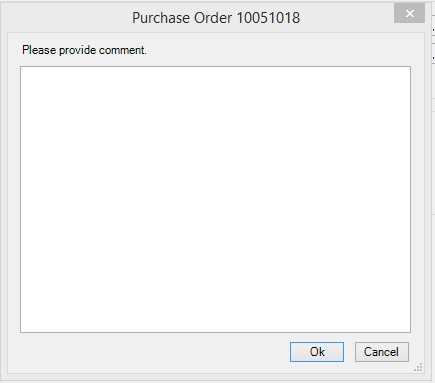
After approval, the status for the order will now read:

If the user navigates to Purchasing > Capital Requests and selects the Capital Request they linked to the Purchase Order, they will find that it now displays their Purchase Order under the Purchase Orders tab.